Goals
- Stream desktop and games over the network (wireless)
- No physical monitor or display emulator (dummy plug) required
- Unattended operation
Prerequisites
I assume there is an NVIDIA GPU in the machine. I believe AMD GPUs can also be used, but the only issue is they might not support virtual displays, so you might have to purchase a display emulator.
Display emulator
Also known as dummy plugs. They pretend to be a monitor so the system renders
from the GPU instead of CPU emulation, like xserver-xorg-video-dummy.
I assume the machine is running Arch Linux, simply because it’s the best Linux distribution.
I'm not running Arch Linux
If your machine isn’t running Arch, I suggest you install it.
Furthermore, I don’t assume the machine has a monitor, mouse, or keyboard connected. Linux doesn’t need those. However, I do assume your machine is connected to the network, for obvious reasons.
Logging into the Machine
You can log in via SSH or a TTY.
Installing Software and Patching Drivers
The NVIDIA proprietary drivers must be installed. Xorg must be used instead of Wayland due to virtual display requirements. You will likely need a desktop environment; I’ll choose Mate here.
paru -S nvidia-utils xorg-init mateBasically, NVIDIA consumer drivers block nvbfc, so Sunshine cannot directly capture the frames in video memory. The great thing about Arch Linux is the AUR, where you can easily find scripts to patch the drivers.
# Enable nvbfc and unlock the nvenc session limit
paru -S nvidia-patch
Verifying Drivers
Verify that the drivers are working using nvidia-smi. Note that processes
running on the GPU are shown under Processes.
zhufu@zhufusarch ~> nvidia-smi
Thu Mar  7 13:16:04 2024
+-----------------------------------------------------------------------------------------+
| NVIDIA-SMI 550.54.14              Driver Version: 550.54.14      CUDA Version: 12.4     |
|-----------------------------------------+------------------------+----------------------+
| GPU  Name                 Persistence-M | Bus-Id          Disp.A | Volatile Uncorr. ECC |
| Fan  Temp   Perf          Pwr:Usage/Cap |           Memory-Usage | GPU-Util  Compute M. |
|                                         |                        |               MIG M. |
|=========================================+========================+======================|
|   0  NVIDIA GeForce GTX 1080 Ti     Off |   00000000:29:00.0 Off |                  N/A |
| 27%   34C    P8             12W /  250W |     341MiB /  11264MiB |      0%      Default |
|                                         |                        |                  N/A |
+-----------------------------------------+------------------------+----------------------+

+-----------------------------------------------------------------------------------------+
| Processes:                                                                              |
|  GPU   GI   CI        PID   Type   Process name                              GPU Memory |
|        ID   ID                                                               Usage      |
|=========================================================================================|
|    0   N/A  N/A      1167      G   /usr/lib/Xorg                                 160MiB |
|    0   N/A  N/A      1170    C+G   sunshine                                      174MiB |
+-----------------------------------------------------------------------------------------+
Configuring Sunshine and Virtual Display
Sunshine
Let’s start with the easy part. Download Sunshine from the AUR.
paru -S sunshine-bin
# You can also choose `sunshine`, which compiles from source.
sunshine will be added to your PATH. I’ll run it from tmux so the process
stays alive when I log out of SSH.
zhufu@zhufusarch ~> tmux
Welcome to fish, the friendly interactive shell
Type help for instructions on how to use fish
zhufu@zhufusarch ~> sunshine
[2024:03:07:13:29:03]: Info: Sunshine version: v0.22.0
[2024:03:07:13:29:03]: Warning: Failed to create system tray
[2024:03:07:13:29:03]: Error: Failed to create session: Unable to open display
[2024:03:07:13:29:03]: Error: Failed to gain CAP_SYS_ADMIN
[2024:03:07:13:29:03]: Error: Environment variable WAYLAND_DISPLAY has not been defined
[2024:03:07:13:29:03]: Error: Unable to initialize capture method
[2024:03:07:13:29:03]: Error: Platform failed to initialize
[2024:03:07:13:29:03]: Info: // Testing for available encoders, this may generate errors. You can safely ignore those errors. //
[2024:03:07:13:29:03]: Info: Trying encoder [nvenc]
[2024:03:07:13:29:04]: Info: Encoder [nvenc] failed
[2024:03:07:13:29:04]: Info: Trying encoder [vaapi]
[2024:03:07:13:29:04]: Info: Encoder [vaapi] failed
[2024:03:07:13:29:04]: Info: Trying encoder [software]
[2024:03:07:13:29:04]: Info: Encoder [software] failed
[2024:03:07:13:29:04]: Fatal: Unable to find display or encoder during startup.
[2024:03:07:13:29:04]: Fatal: Please check that a display is connected and powered on.
[2024:03:07:13:29:04]: Error: Video failed to find working encoder
[2024:03:07:13:29:04]: Info: Adding avahi service Sunshine
[2024:03:07:13:29:04]: Info: Configuration UI available at [https://localhost:47990]
[2024:03:07:13:29:05]: Info: Avahi service Sunshine successfully established.
Notice Configuration UI available at [https://localhost:47990]. This is
actually a lie. Sunshine’s Web UI listens on 0.0.0.0:47990. My NAS hostname is
zhufusarch, so I can access https://zhufusarch.local:47990 from my laptop.
If your NAS is not on the same subnet, you’ll need its public IP address or SSH
port forwarding, but I won’t go into detail about that.
In the Web UI:
Attention!
Sunshine detected these errors during startup. We STRONGLY RECOMMEND fixing them before streaming.
-
Fatal: Unable to find display or encoder during startup.
-
Fatal: Please check that a display is connected and powered on.
We’ll resolve these errors later.
Moonlight
Install Moonlight from Moonlight Game Streaming: Play Your PC Game remotely. This step happens on the receiving device. Moonlight supports many platforms, including but not limited to:
- PC / Mac
- Android / iOS
- TV / Nintendo Switch?
Xorg Virtual Display
Modern Xorg is smart. It doesn’t need a template generated by nvidia-xconfig
to make monitors and input devices work. However, special configuration is
required for virtual displays. Here is a minimal configuration template:
zhufu@zhufusarch ~> cat /etc/X11/xorg.conf
Section "Device"
    Identifier     "Device0"
    Driver         "nvidia"
    VendorName     "NVIDIA Corporation"
    Option         "ConnectedMonitor" "DFP"
    Option         "UseDisplayDevice" "DFP"
    Option         "AllowEmptyInitialConfiguration" "True"
    Option         "NoPowerConnectorCheck" "True"
    Option         "ModeValidation" "NoDFPNativeResolutionCheck,NoVirtualSizeCheck,NoMaxPClkCheck,NoHorizSyncCheck,NoVertRefreshCheck,NoWidthAlignmentCheck AllowNonEdidModes"
EndSection

Section "Screen"
    Identifier  "nvidiascreen"
    Device      "Device0"
    Option      "ConnectedMonitor" "DP-0"
    SubSection  "Display"
        Modes     "2400x1500"
    EndSubSection
EndSection
"DP-0" is an identifier for any output port on the GPU. It will likely be
DP-X or HDMI-X. If none of them work, the only thing you can do is actually
connect a monitor or dummy plug, start the X server, and check the available
ports:
zhufu@zhufusarch ~> paru -S xterm
zhufu@zhufusarch ~> startx &
zhufu@zhufusarch ~> xrandr
Screen 0: minimum 8 x 8, current 2268 x 1473, maximum 32767 x 32767
DVI-D-0 disconnected (normal left inverted right x axis y axis)
HDMI-0 disconnected (normal left inverted right x axis y axis)
DP-0 disconnected (normal left inverted right x axis y axis)
DP-1 disconnected (normal left inverted right x axis y axis)
DP-2 disconnected (normal left inverted right x axis y axis)
DP-3 disconnected (normal left inverted right x axis y axis)
DP-4 disconnected (normal left inverted right x axis y axis)
DP-5 disconnected (normal left inverted right x axis y axis)
Configuring xinit
First, get a template from /etc:
cp /etc/X11/xinit/xinitrc ~/.xinitrcI want to have a desktop environment when streaming, similar to remote desktop.
I use Mate. The configuration involves adding the startup command to the end of
xinitrc:
echo 'exec mate-session' >> ~/.xinitrcI'm not running Mate
In the Desktop environment -
ArchWiki, find the
entry for your DE, which should explain how to configure it with xinitrc.
Starting Sunshine
Elevating Permissions
You need to change the permissions of /dev/uinput and /dev/dri/cardX because
of how udev works in unattended scenarios. It’s far from elegant, but there’s no
better way—at least none I can think of.
sudo chown $(id -nu):$(id -ng) /dev/uinput
sudo chown $(id -nu):$(id -ng) /dev/dri/card*
You’ll have to enable sudo nopasswd because rebooting the system resets these
file permissions. You could also put these two commands into a script and give
only that script nopasswd permissions, which sounds safer.
echo "${USER} ALL=(ALL:ALL) ALL, NOPASSWD: $(pwd)/sunshine-setup.sh" \
  | sudo tee /etc/sudoers.d/${USER}
Additionally, Xorg has permission thresholds. You need to enable root privileges for normal users:
zhufu@zhufusarch ~> cat /etc/X11/Xwrapper.config
allowed_users = anybody
needs_root_rights = yes
Running Desktop and Stream Server Manually
Start the xserver and sunshine from the command line. Now, Sunshine can utilize
the nvenc encoder.
zhufu@zhufusarch ~> startx &
zhufu@zhufusarch ~> sunshine
[2024:03:07:14:42:58]: Info: Sunshine version: v0.22.0
[2024:03:07:14:42:58]: Info: System tray created
-- snippet --
[2024:03:07:14:43:01]: Info: // Ignore any errors mentioned above, they are not relevant. //
[2024:03:07:14:43:01]: Info:
[2024:03:07:14:43:01]: Info: Found H.264 encoder: h264_nvenc [nvenc]
[2024:03:07:14:43:01]: Info: Found HEVC encoder: hevc_nvenc [nvenc]
[2024:03:07:14:43:01]: Info: Adding avahi service Sunshine
[2024:03:07:14:43:01]: Info: Configuration UI available at [https://localhost:47990]
[2024:03:07:14:43:01]: Info: Avahi service Sunshine successfully established.
In Moonlight, you should see the computer and its hostname—in my case,
zhufusarch. 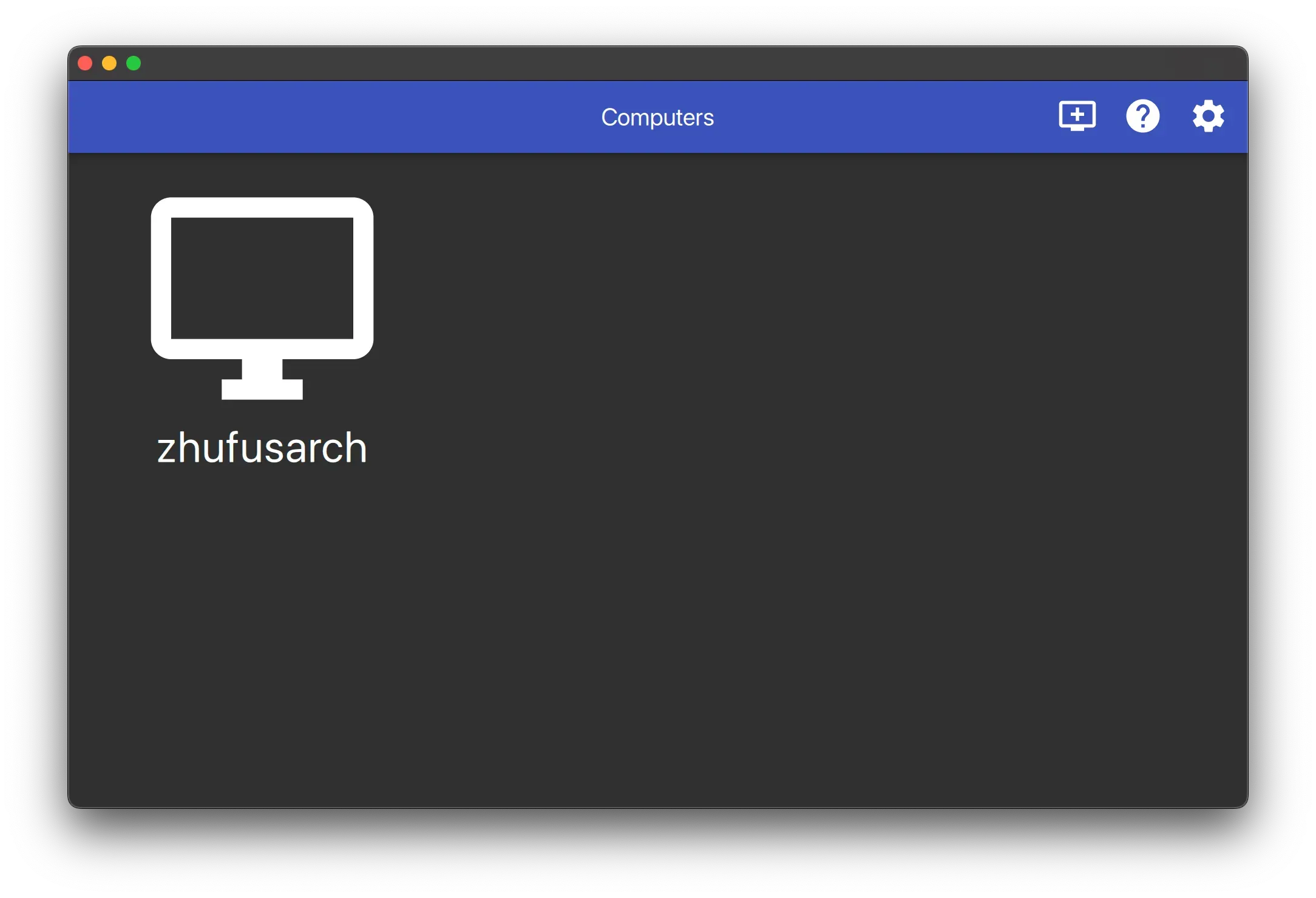
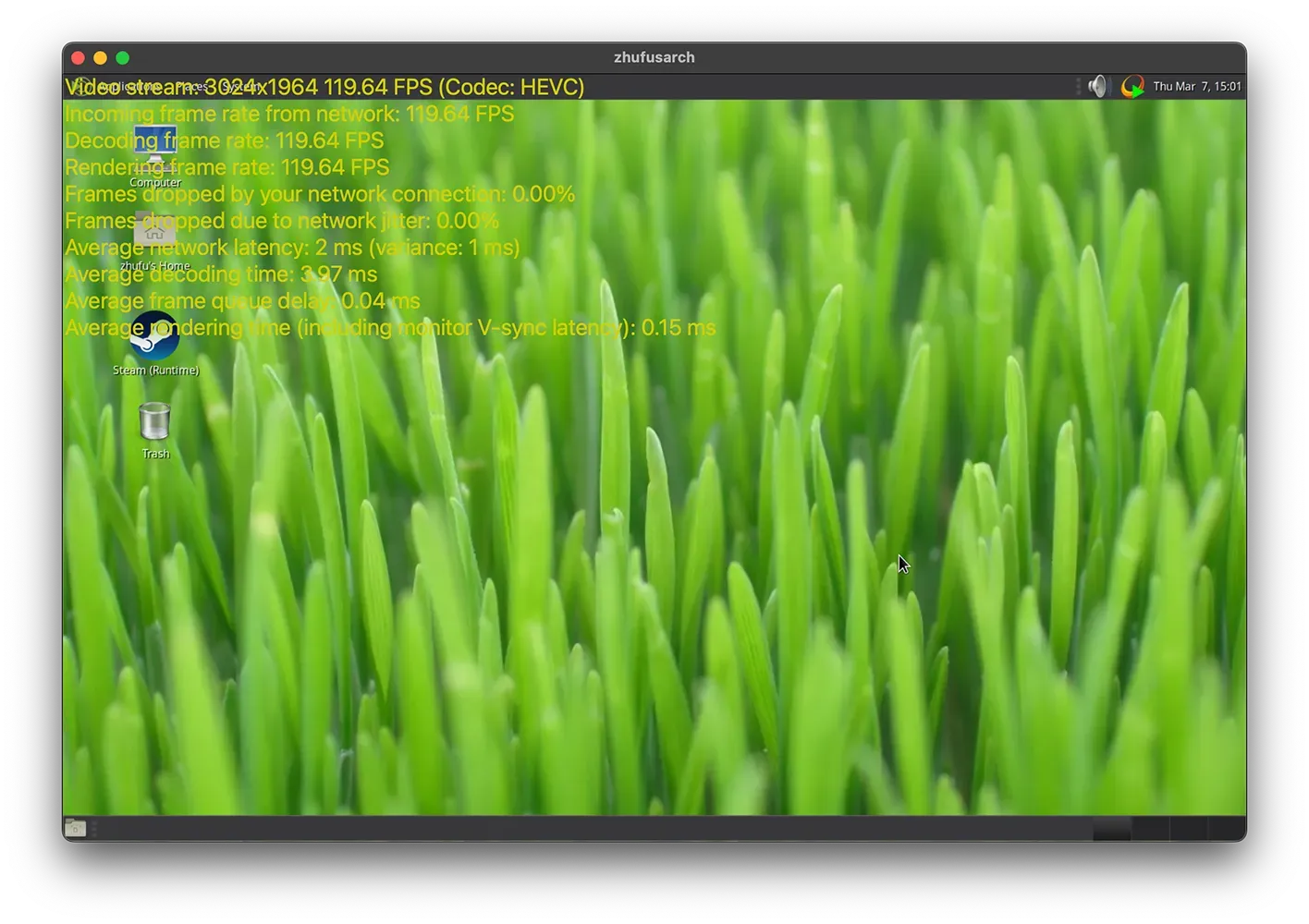
Connect to the desktop and test the usability. Use
Control - Option - Shift - S to check the frame rate and other stats.
Unattended Operation
You need to modify the loginctl configuration so Sunshine and Xorg can stay
alive without an SSH login:
sudo loginctl enable-linger $(id -nu)Find a place for your user scripts, as we’ll be using three of them. I like to
put them in ~/.local/share/scripts:
zhufu@zhufusarch ~> mkdir -p ~/.local/share/scripts && cd ~/.local/share/scripts
zhufu@zhufusarch ~> vim virtdisplay.sh
#!/bin/bash
dbus-launch

# Check existing X server
ps -e | grep X >/dev/null
[[ ${?} -ne 0 ]] && {
 echo "Starting X server"
 startx
} || echo "X server already running"
zhufu@zhufusarch ~> vim sunshine.sh
#!/bin/bash
sudo $HOME/.local/share/scripts/sunshine-setup.sh
echo "Starting Sunshine!"
sunshinezhufu@zhufusarch ~> echo "sudo chown $(id -nu):$(id -ng) /dev/uinput \
&& sudo chown $(id -nu):$(id -ng) /dev/dri/card*" > sunshine-setup.sh
zhufu@zhufusarch ~> chmod +x *.shCreate user-level systemd units so Xorg and Sunshine can start with the system:
zhufu@zhufusarch ~> systemctl --user edit --full --force xorg-virtdisplay
[Unit]
Description=Xorg virtual display

[Service]
ExecStart=/home/zhufu/.local/share/scripts/virtdisplay.sh
Type=simple

[Install]
WantedBy=default.target
zhufu@zhufusarch ~> systemctl --user edit --full sunshine
[Unit]
Description=Sunshine is a self-hosted game stream host for Moonlight.
StartLimitIntervalSec=500
StartLimitBurst=5
Wants=xorg-virtdisplay.target
After=xorg-virtdisplay.target
[Service]
ExecStart=/home/zhufu/.local/share/scripts/sunshine.sh
Restart=on-failure
RestartSec=5s
Environment=DISPLAY=:0
[Install]
WantedBy=default.targetEnable these units:
systemctl --user enable --now xorg-virtdisplay sunshineIncreasing Robustness
The Problem
Sunshine isn’t the most stable on my machine; it panics after four or five reconnections.
[2024:03:09:15:00:30]: Error: Couldn't set default-sink [auto_null]: No such entity
[2024:03:09:15:00:30]: Error: Couldn't destroy session handle: Unable to cleanup NvFBC
[2024:03:09:15:00:30]: Error: Couldn't release NvFBC context from current thread: Unable to cleanup NvFBC
[2024:03:09:15:00:30]: Error: CreateBitstreamBuffer failed: out of memory
I don’t have definitive proof, but I suspect it’s hardware-related. I only write software, so here’s my solution.
Sunflower
Sunflower uses top-tier programming techniques to make Sunshine robust. Its approach is to detect when Sunshine is not working properly and tell it to restart.
Conditions to trigger a restart:
- Output contains
CreateBitstreamBuffer failed: out of memory - Cannot access the HTTP console
You can compile Sunflower with the following commands:
paru -S rustup
rustup default

git clone https://github.com/zhufucdev/sunflower
cd sunflower
cargo build --release
Sunflower is a wrapper for Sunshine. In sunshine.sh, call sunflower instead:
#!/bin/bash

sudo $HOME/.local/share/scripts/sunshine-setup.sh
echo "Starting Sunshine!"
- sunshine
+ sunflower https://localhost
You can modify the code to fit your specific situation.