2024年3月7日
目標
- 網路(無線)串流桌面和遊戲
- 不買螢幕或顯示虛擬插頭(dummy plug)
- 無人值守
前提條件
我假設機器裡有一張 NVIDIA 顯示卡。我相信 AMD 顯示卡也可以用,唯一的問題是它不能做虛擬顯示器,所以你不得不購買一個虛擬插頭。
顯示虛擬插頭
也叫 dummy plugs。它們假裝自己是一個顯示器,所以系統會從 GPU 渲染,而不是 CPU
模擬,比如 xserver-xorg-video-dummy
我假設機器執行 Arch Linux,只因為它是最超強的 Linux 發行版。
我沒執行 Arch Linux
如果你的機器不是 Arch,我會建議你裝一個
此外,我不假設機器連接有顯示器、滑鼠或鍵盤。Linux 不需要這些東西。但我假設你的機器有聯網,因為顯而易見的原因。
登入機器
你可以從 SSH 或 tty 登入機器。
安裝軟體和修改驅動程式
必須安裝 NVIDIA 專有驅動。必須用 Xorg 而不是 Wayland,因為虛擬顯示器的關係。你大概率會需要一個桌面環境,這裡我會選擇 Mate。
paru -S nvidia-utils xorg-init mate基本上,NVIDIA 消費級驅動屏蔽了 nvbfc,所以 Sunshine 不能直接捕捉視訊記憶體(VRAM)裡面的畫面。Arch Linux 超強的地方就是 AUR,在那裡輕鬆找到修改驅動的腳本。
# 啟用 nvbfc 和解鎖 nvenc 單元數量限制
paru -S nvidia-patch
驗證驅動程式
透過 nvidia-smi 驗證驅動是否運作。注意執行在 GPU 上的程序會顯示在
Processes。
zhufu@zhufusarch ~> nvidia-smi
Thu Mar  7 13:16:04 2024
+-----------------------------------------------------------------------------------------+
| NVIDIA-SMI 550.54.14              Driver Version: 550.54.14      CUDA Version: 12.4     |
|-----------------------------------------+------------------------+----------------------+
| GPU  Name                 Persistence-M | Bus-Id          Disp.A | Volatile Uncorr. ECC |
| Fan  Temp   Perf          Pwr:Usage/Cap |           Memory-Usage | GPU-Util  Compute M. |
|                                         |                        |               MIG M. |
|=========================================+========================+======================|
|   0  NVIDIA GeForce GTX 1080 Ti     Off |   00000000:29:00.0 Off |                  N/A |
| 27%   34C    P8             12W /  250W |     341MiB /  11264MiB |      0%      Default |
|                                         |                        |                  N/A |
+-----------------------------------------+------------------------+----------------------+

+-----------------------------------------------------------------------------------------+
| Processes:                                                                              |
|  GPU   GI   CI        PID   Type   Process name                              GPU Memory |
|        ID   ID                                                               Usage      |
|=========================================================================================|
|    0   N/A  N/A      1167      G   /usr/lib/Xorg                                 160MiB |
|    0   N/A  N/A      1170    C+G   sunshine                                      174MiB |
+-----------------------------------------------------------------------------------------+
設定 Sunshine 和虛擬顯示器
Sunshine
先從簡單的開始。從 AUR 下載 Sunshine。
paru -S sunshine-bin
# 你也可以選擇 `sunshine`。那個套件會從源碼編譯安裝。
sunshine
會被添加到 PATH。我會從 tmux 執行,所以登出 SSH 的時候程序還活在那裡。
zhufu@zhufusarch ~> tmux
Welcome to fish, the friendly interactive shell
Type help for instructions on how to use fish
zhufu@zhufusarch ~> sunshine
[2024:03:07:13:29:03]: Info: Sunshine version: v0.22.0
[2024:03:07:13:29:03]: Warning: Failed to create system tray
[2024:03:07:13:29:03]: Error: Failed to create session: Unable to open display
[2024:03:07:13:29:03]: Error: Failed to gain CAP_SYS_ADMIN
[2024:03:07:13:29:03]: Error: Environment variable WAYLAND_DISPLAY has not been defined
[2024:03:07:13:29:03]: Error: Unable to initialize capture method
[2024:03:07:13:29:03]: Error: Platform failed to initialize
[2024:03:07:13:29:03]: Info: // Testing for available encoders, this may generate errors. You can safely ignore those errors. //
[2024:03:07:13:29:03]: Info: Trying encoder [nvenc]
[2024:03:07:13:29:04]: Info: Encoder [nvenc] failed
[2024:03:07:13:29:04]: Info: Trying encoder [vaapi]
[2024:03:07:13:29:04]: Info: Encoder [vaapi] failed
[2024:03:07:13:29:04]: Info: Trying encoder [software]
[2024:03:07:13:29:04]: Info: Encoder [software] failed
[2024:03:07:13:29:04]: Fatal: Unable to find display or encoder during startup.
[2024:03:07:13:29:04]: Fatal: Please check that a display is connected and powered on.
[2024:03:07:13:29:04]: Error: Video failed to find working encoder
[2024:03:07:13:29:04]: Info: Adding avahi service Sunshine
[2024:03:07:13:29:04]: Info: Configuration UI available at [https://localhost:47990]
[2024:03:07:13:29:05]: Info: Avahi service Sunshine successfully established.
注意到
Configuration UI available at [https://localhost:47990]。這其實是個謊言。Sunshine 的 Web
UI 監聽在
0.0.0.0:47990,我的 NAS 主機名是 zhufusarch,所以我可以在我的筆電存取
https://zhufusarch.local:47990
如果你的 NAS 和你不在同一個子網路,你需要它的公網位址,或者從 SSH 埠號映射,但這方面我不想講太多。
在 Web UI,
Attention!
Sunshine detected these errors during startup. We STRONGLY RECOMMEND fixing them before streaming.
-
Fatal: Unable to find display or encoder during startup.
-
Fatal: Please check that a display is connected and powered on.
我們回頭再解決這些錯誤。
Moonlight
從 Moonlight Game Streaming: Play Your PC Game remotely 安裝 Moonlight。這一步發生在接收端。Moonlight 支援很多平台,包括但不限於
- PC / Mac
- Android / iOS
- TV / Nintendo Switch?
Xorg 虛擬顯示器
現代 Xorg 很聰明。它不需要 nvidia-xconfig 產生的範本,也可以讓顯示器和輸入裝置運作。但要讓虛擬顯示器運作,需要一些特殊的設定。以下是最小設定的範本。
zhufu@zhufusarch ~> cat /etc/X11/xorg.conf
Section "Device"
    Identifier     "Device0"
    Driver         "nvidia"
    VendorName     "NVIDIA Corporation"
    Option         "ConnectedMonitor" "DFP"
    Option         "UseDisplayDevice" "DFP"
    Option         "AllowEmptyInitialConfiguration" "True"
    Option         "NoPowerConnectorCheck" "True"
    Option         "ModeValidation" "NoDFPNativeResolutionCheck,NoVirtualSizeCheck,NoMaxPClkCheck,NoHorizSyncCheck,NoVertRefreshCheck,NoWidthAlignmentCheck AllowNonEdidModes"
EndSection

Section "Screen"
    Identifier  "nvidiascreen"
    Device      "Device0"
    Option      "ConnectedMonitor" "DP-0"
    SubSection  "Display"
        Modes     "2400x1500"
    EndSubSection
EndSection
"DP-0"
是 GPU 任意一個輸出介面的識別碼。大概率會是 DP-X 或者 HDMI-X。如果它們都不運作,唯一能做的事情就是真的連接一個螢幕或者虛擬插頭、啟動 X 伺服器、查看可用的介面。
zhufu@zhufusarch ~> paru -S xterm
zhufu@zhufusarch ~> startx &
zhufu@zhufusarch ~> xrandr
Screen 0: minimum 8 x 8, current 2268 x 1473, maximum 32767 x 32767
DVI-D-0 disconnected (normal left inverted right x axis y axis)
HDMI-0 disconnected (normal left inverted right x axis y axis)
DP-0 disconnected (normal left inverted right x axis y axis)
DP-1 disconnected (normal left inverted right x axis y axis)
DP-2 disconnected (normal left inverted right x axis y axis)
DP-3 disconnected (normal left inverted right x axis y axis)
DP-4 disconnected (normal left inverted right x axis y axis)
DP-5 disconnected (normal left inverted right x axis y axis)
設定 xinit
先從 etc 獲取一個範本,
cp /etc/X11/xinit/xinitrc ~/.xinitrc我希望串流的時候能有一個桌面,就像遠端桌面一樣。我使用 Mate。它的設定需是在 xinitrc 的末尾加上啟動指令。
echo 'exec mate-session' >> ~/.xinitrc我沒執行 Mate
在 Desktop environment - ArchWiki 裡,找到你 DE 的條目,裡面應該會有它設定 initx 的方法。
啟動 Sunshine
提高權限
需要修改 /dev/uinput 和 /dev/dri/cardX 的權限,因為 Udev 在無人值守情況下工作方式的問題。這方法不太優雅,但沒有更好的辦法,至少我想不到。
sudo chown $(id -nu):$(id -ng) /dev/uinput
sudo chown $(id -nu):$(id -ng) /dev/dri/card*
不得不啟用 sudo nopasswd,因為重啟系統會重置這些檔案的權限。你也可以將這兩條指令作為腳本,單獨給它 nopasswd 權限,這聽起來更安全。
echo "${USER} ALL=(ALL:ALL) ALL, NOPASSWD: $(pwd)/sunshine-setup.sh" \
  | sudo tee /etc/sudoers.d/${USER}
此外,Xorg 也設有權限門檻。需要為普通使用者開啟 root 的功能。
zhufu@zhufusarch ~> cat /etc/X11/Xwrapper.config
allowed_users = anybody
needs_root_rights = yes
手動執行桌面和串流伺服器
從命令列啟動 xserver 和 sunshine。現在,Sunshine 可以利用 nvenc 編碼器。
zhufu@zhufusarch ~> startx &
zhufu@zhufusarch ~> sunshine
[2024:03:07:14:42:58]: Info: Sunshine version: v0.22.0
[2024:03:07:14:42:58]: Info: System tray created
-- snippt --
[2024:03:07:14:43:01]: Info: // Ignore any errors mentioned above, they are not relevant. //
[2024:03:07:14:43:01]: Info:
[2024:03:07:14:43:01]: Info: Found H.264 encoder: h264_nvenc [nvenc]
[2024:03:07:14:43:01]: Info: Found HEVC encoder: hevc_nvenc [nvenc]
[2024:03:07:14:43:01]: Info: Adding avahi service Sunshine
[2024:03:07:14:43:01]: Info: Configuration UI available at [https://localhost:47990]
[2024:03:07:14:43:01]: Info: Avahi service Sunshine successfully established.
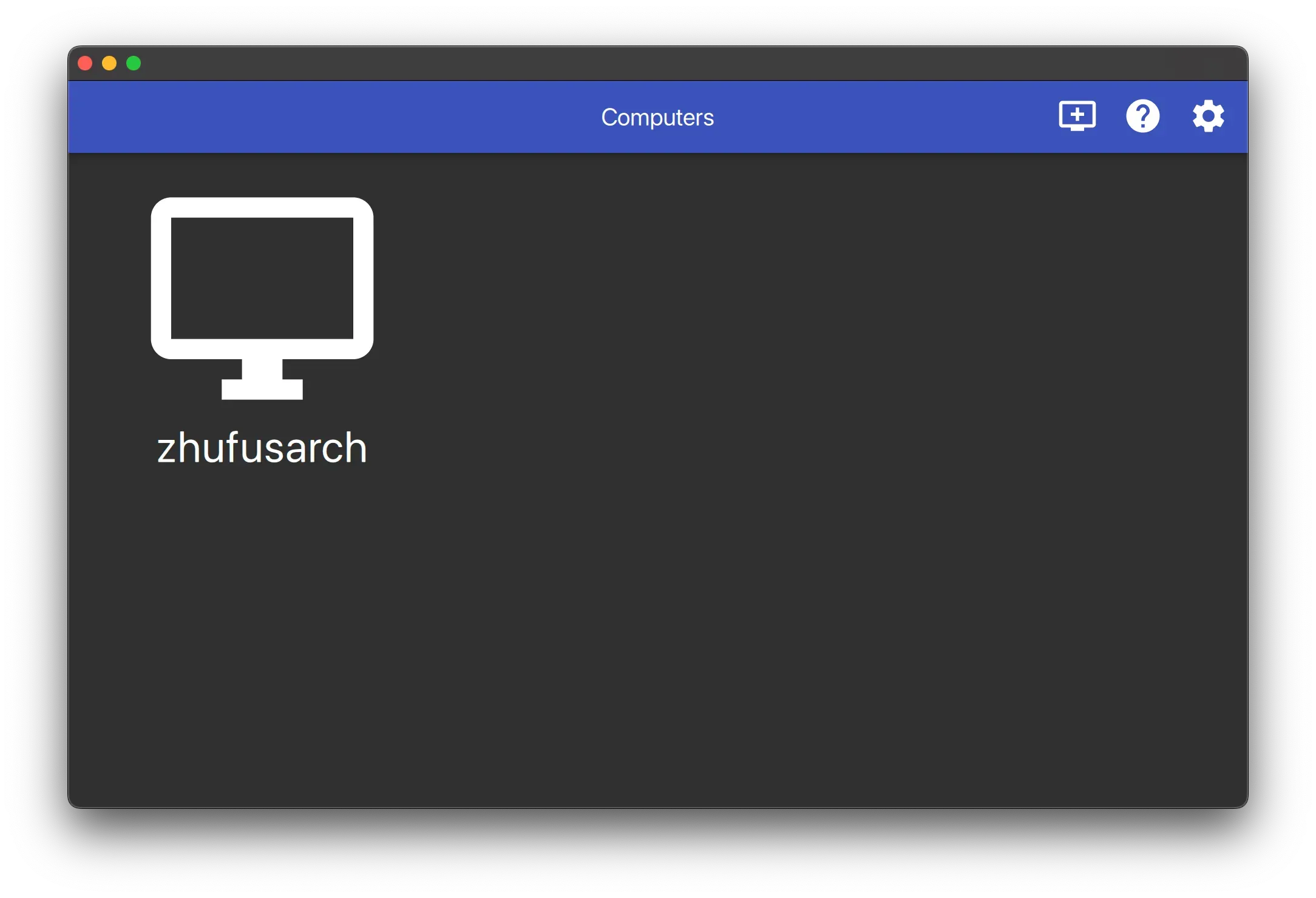
在 Moonlight,可以看到電腦和它的主機名,在我的例子裡,zhufusarch。
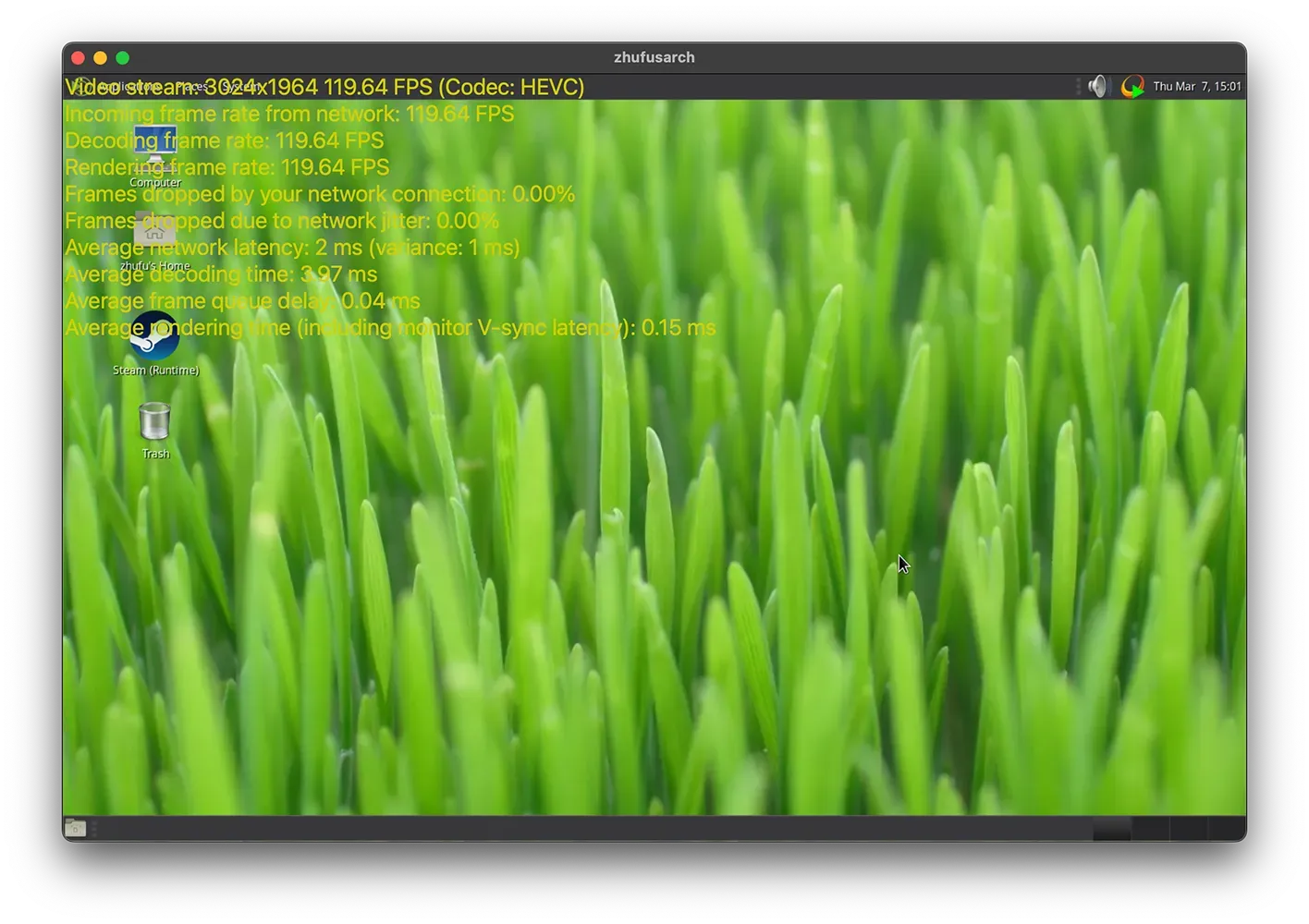
連接桌面,測試可用性。用 Control - Option - Shift - S 查看影格率等。
無人值守
需要修改 loginctl 的設定,所以不 SSH 登入也能讓 sunshine 和 xorg 活著。
sudo loginctl enable-linger $(id -nu)找一個放使用者腳本的地方,因為要用三個腳本。我喜歡放在 ~/.local/share/scripts
裡。
zhufu@zhufusarch ~> mkdir -p ~/.local/share/scripts && cd ~/.local/share/scripts
zhufu@zhufusarch ~> vim virtdisplay.sh
#!/bin/bash
dbus-launch

# Check existing X server
ps -e | grep X >/dev/null
[[ ${?} -ne 0 ]] && {
 echo "Starting X server"
 startx
} || echo "X server already running"
zhufu@zhufusarch ~> vim sunshine.sh

#!/bin/bash

sudo $HOME/.local/share/scripts/sunshine-setup.sh
echo "Starting Sunshine!"
sunshine
zhufu@zhufusarch ~> echo "sudo chown $(id -nu):$(id -ng) /dev/uinput \
&& sudo chown $(id -nu):$(id -ng) /dev/dri/card*" > sunshine-setup.sh
zhufu@zhufusarch ~> chmod +x *.sh
建立使用者態 systemd 單位,所以 xorg 和 sunshine 可以隨系統啟動。
zhufu@zhufusarch ~> systemctl --user edit --full --force xorg-virtdisplay
[Unit]
Description=Xorg virutal display

[Service]
ExecStart=/home/zhufu/.local/share/scripts/virtdisplay.sh
Type=simple

[Install]
WantedBy=default.target
zhufu@zhufusarch ~> systemctl --user edit --full sunshine
[Unit]
Description=Sunshine is a self-hosted game stream host for Moonlight.
StartLimitIntervalSec=500
StartLimitBurst=5
Wants=xorg-virtdisplay.target
After=xorg-virtdisplay.target
[Service]
ExecStart=/home/zhufu/.local/share/scripts/sunshine.sh
Restart=on-failure
RestartSec=5s
Environment=DISPLAY=:0
[Install]
WantedBy=default.target啟用這兩個單位。
systemctl --user enable --now xorg-virtdisplay sunshine增加強健性
問題
Sunshine 在我的機器上不是最穩定的,四五次重新連接,它會 panic。
[2024:03:09:15:00:30]: Error: Couldn't set default-sink [auto_null]: No such entity
[2024:03:09:15:00:30]: Error: Couldn't destroy session handle: Unable to cleanup NvFBC
[2024:03:09:15:00:30]: Error: Couldn't release NvFBC context from current thread: Unable to cleanup NvFBC
[2024:03:09:15:00:30]: Error: CreateBitstreamBuffer failed: out of memory
我沒有明確的證據,但我感覺這和硬體有關係。我只會寫軟體,所以這是我的解法。
Sunflower
Sunflower 用最頂尖的編程技術,讓 Sunshine 變得強健。它的做法是,檢測到 Sunshine 運作不正常,叫它重啟。
觸發重啟的條件是:
- 輸出中包含
CreateBitstreamBuffer failed: out of memory - 不能存取 HTTP 控制台
可以用以下命令編譯 Sunflower。
paru -S rustup
rustup default

git clone https://github.com/zhufucdev/sunflower
cd sunflower
cargo build --release
Sunflower 是 Sunshine 的包裝。在 sunshine.sh 中,調用 sunflower 作為替代。
#!/bin/bash

sudo $HOME/.local/share/scripts/sunshine-setup.sh
echo "Starting Sunshine!"
- sunshine
+ sunflower https://localhost
可以修改程式碼,讓它貼合具體情況。